Using QR codes - Mobile
How to use QR codes on the Harvest mobile app

Cal Doval
Dec 4, 2025
Before you begin, ensure you have:
- The UC Davis Harvest app installed on your iPhone
- A Worker (or higher) role on Harvest
- Access to the QR code you intend to scan
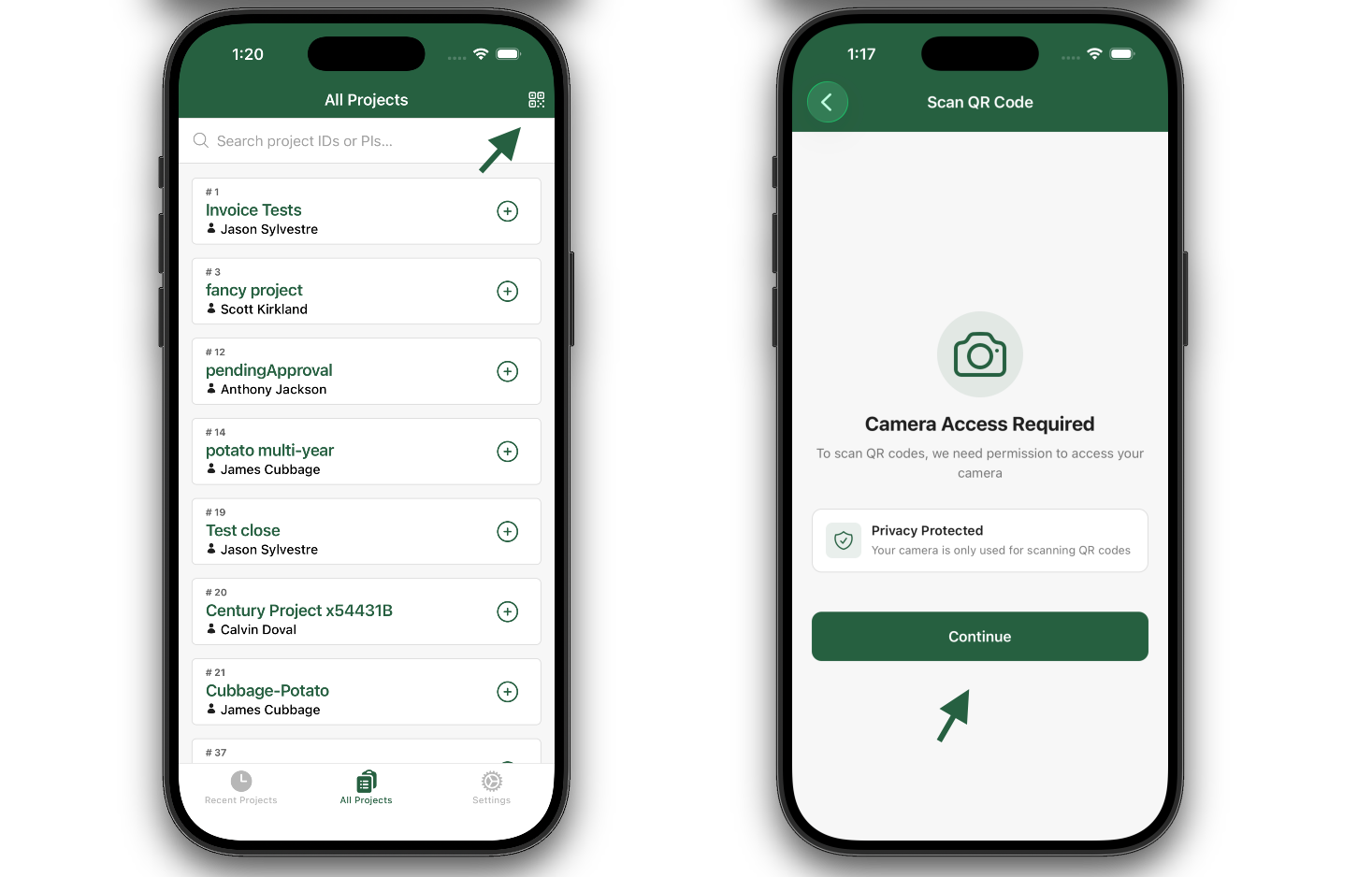
Using a QR Code to Find a Project
- Navigate to either the Recent Projects or All Projects tab.
- Tap the QR code icon in the top-right corner of the screen.
- Grant the application permission to use your camera.
- Aim your camera at the project QR code to scan it.
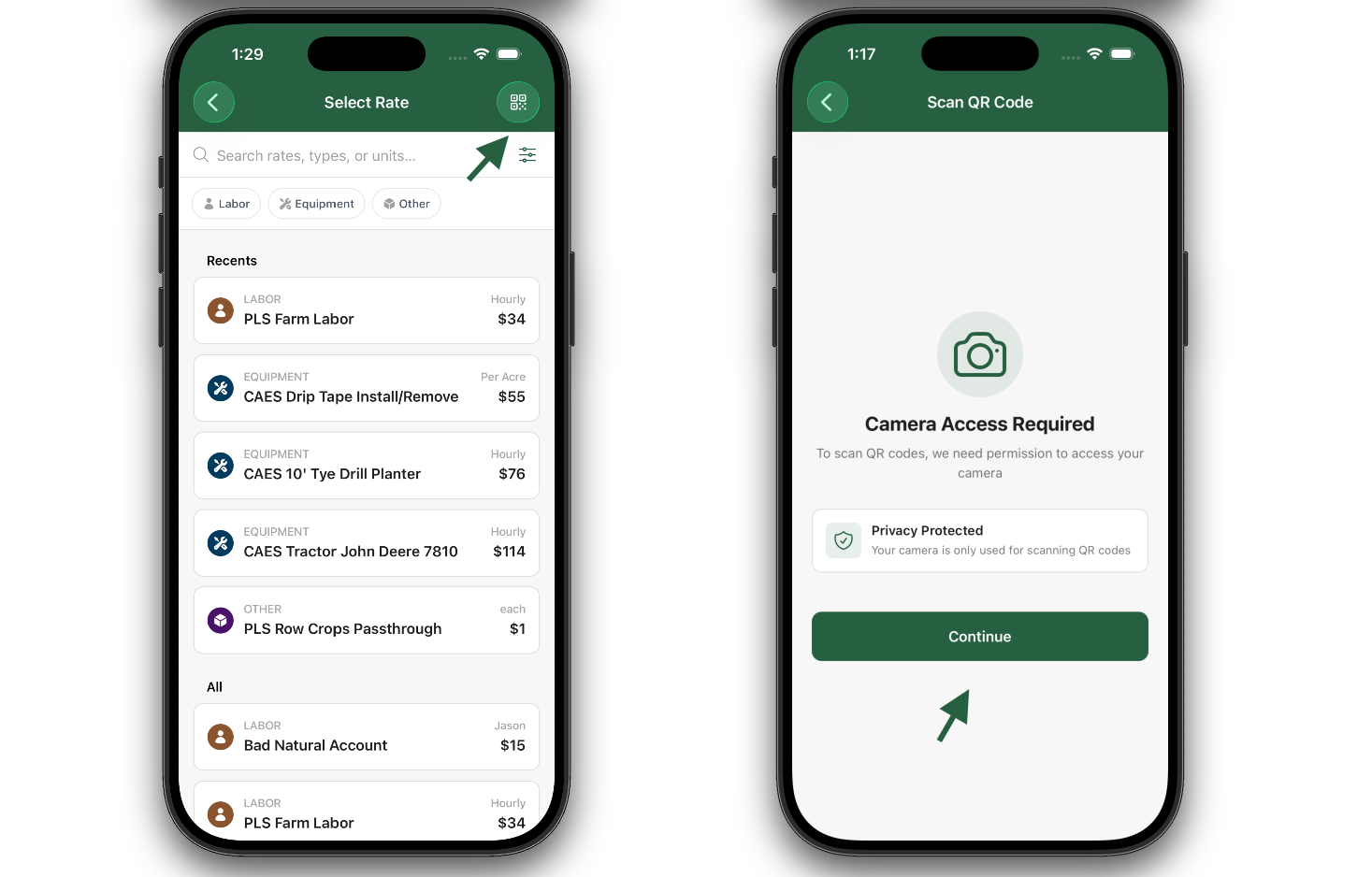
Using a QR Code to Find an Expense Rate
- Navigate to the expense list.
- Tap the QR code icon in the top-right corner of the expense list to open the camera.
- Grant the application permission to use your camera.
- Aim your camera at the expense QR code to scan it.