How to add an expense - Mobile
How to add an expense on the Harvest mobile app

Cal Doval
Dec 4, 2025
Before you begin, ensure you have:
- The UC Davis Harvest app installed on your iPhone
- A Worker (or higher) role on Harvest
Finding the Project
- Open the Harvest app and log in.
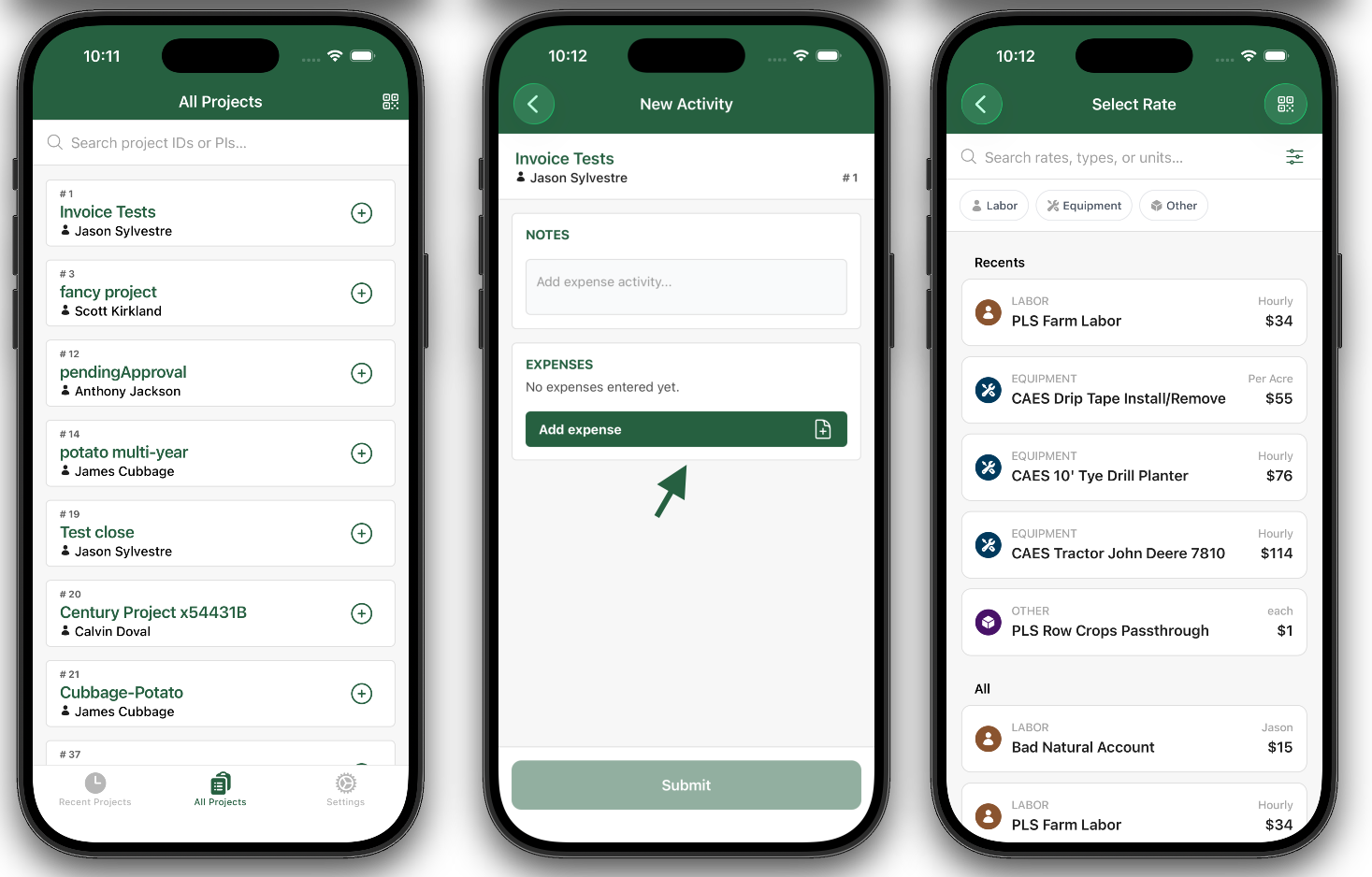
- Navigate to the project where you want to add an expense using the Recent Projects, All Projects tabs. You can use the search bar on those pages to find the specific project.
- Tap on the project to add a new activity.
Finding the Expense
- On the New Activity page, tap the green Add Expense button.
- Search, filter, or scroll to locate the expense you want to add.
- Tap on the expense to add a new entry.
Adding the Expense
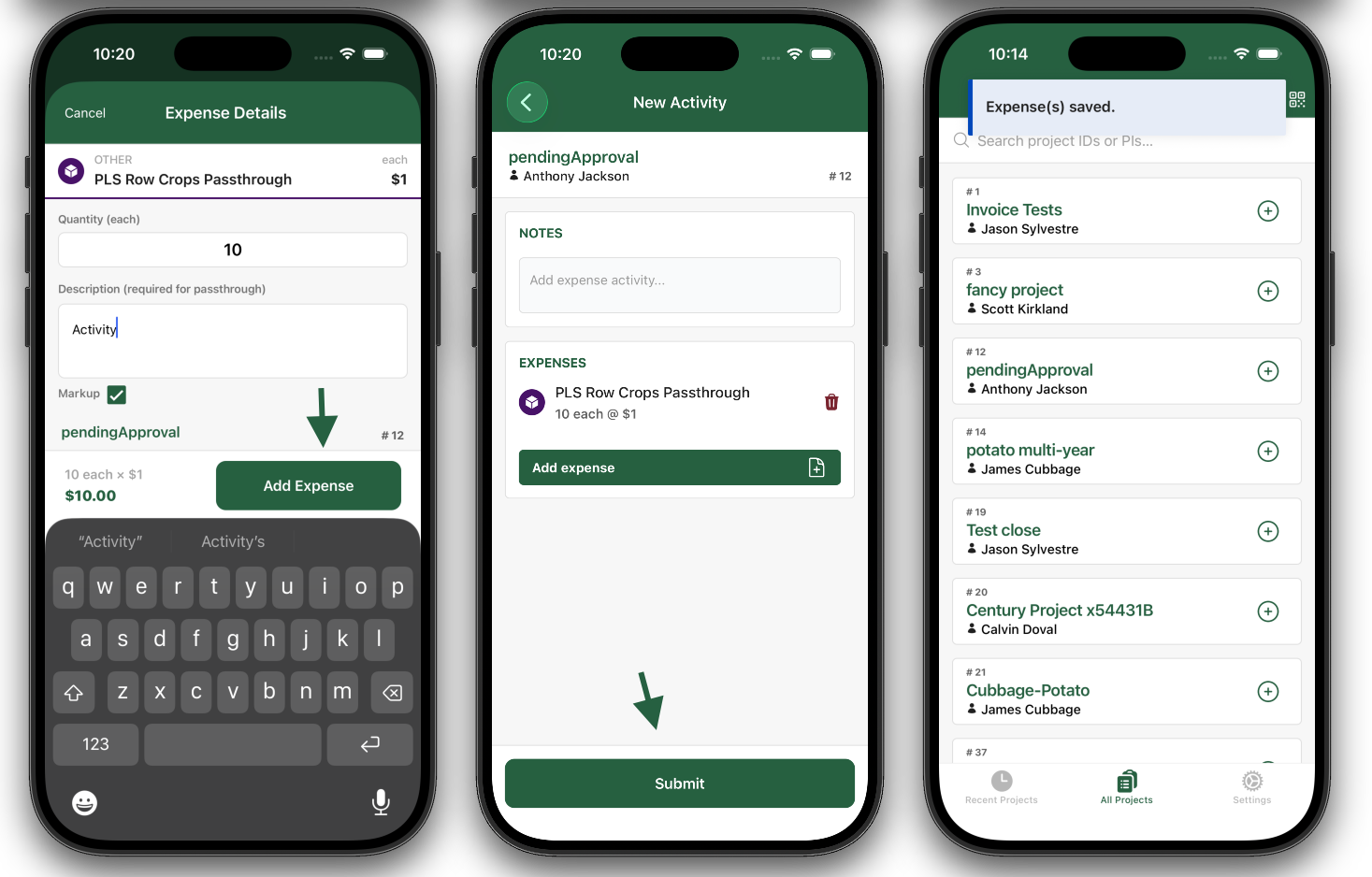
- On the Expense Details screen, complete all required fields.
Note: Required fields vary by expense type.
- Tap Add Expense when finished.
- Back on the Activity page, tap Submit to finalize the entry.
- A confirmation toast message will appear: “Expense saved.”